Buttress Thread \\ Settings (Tab 6):
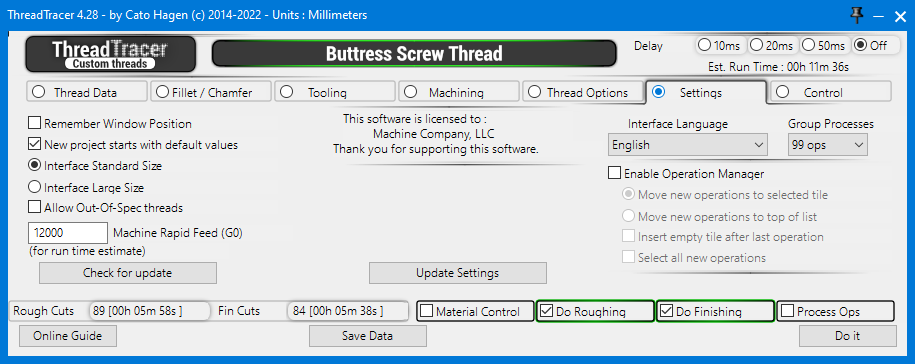
Settings for ThreadTracer
This option does not currently work, interface will always be centered and at the bottom of the screen.
New project starts with default values (Back to top)
New project starts with default values : Enable this to let ThreadTracer always start with the default values. Leaving this off, ThreadTracer will start with the values that was last used.
Interface Standard Size : Set the size of the interface to standard size.
Interface Large Size : Set the size of the interface to large. Use this if the interface and text are too small.
Allow Out-Of-Spec threads. Enable this to allow setting up threads with diameters or pitch that are outside the selected specification. (ISO/ANSI standard)
Machine Rapid Feed : Enter the rapid feed the machine travels at. This number is only used for more accurate calculaton of run time for the thread.
To improve the time estimate, you can set your machine tool Rapid Feedrate here. Your machines rapid feedrate can be found in the parameters of the machine.
As there are as many rapid moves as feed moves in machining a thread, setting the correct rapid feedrate will allow for a more precise time estimate.
If you work in metric, set the Rapid Feed in millimeters/minute. If you work in inch, set the Rapid Feed in inches/minute.
Default values in ThreadTracer are 12000 millimeters/minute for GibbsCAM in metric and 500 inches/minute for GibbsCAM set to inches.
 Check for update : Clicking this button checks if there is a ThreadTracer update available. Requires an internet connection.
Update Settings : If you changed any settings here, clicking 'Update Settings' button will apply the changes and refresh the window.
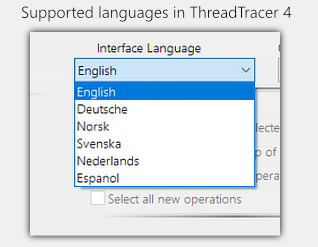
Interface Language : Select the language for the interface. Currently English, German, Norwegian, Swedish, Dutch and Spanish are available.
Check for update : Clicking this button checks if there is a ThreadTracer update available. Requires an internet connection.
Update Settings : If you changed any settings here, clicking 'Update Settings' button will apply the changes and refresh the window.
Interface Language : Select the language for the interface. Currently English, German, Norwegian, Swedish, Dutch and Spanish are available.
 Group Processes : Set how many threading processes / operations to group together. If Nested Toolpath is on, this function is not active.
Enable Operation Manager : Enable this to control how the threading operations are placed in the operation list.
- Move new operations to selected tile : This will move all new threading operations to the selected tile.
- Move new operations to top of list : This will always move all new threading operations to the top, any existing operations will be moved down.
- Insert empty tile after last operation : This will place an empty tile after the last operation, this makes it easier to find there the last threading operation is.
- Select all new operations : This will highlight or select all new operations (marked yellow).
Group Processes : Set how many threading processes / operations to group together. If Nested Toolpath is on, this function is not active.
Enable Operation Manager : Enable this to control how the threading operations are placed in the operation list.
- Move new operations to selected tile : This will move all new threading operations to the selected tile.
- Move new operations to top of list : This will always move all new threading operations to the top, any existing operations will be moved down.
- Insert empty tile after last operation : This will place an empty tile after the last operation, this makes it easier to find there the last threading operation is.
- Select all new operations : This will highlight or select all new operations (marked yellow).
Shows information for ThreadTracer license.
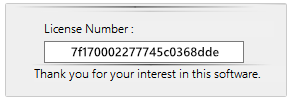
When running the free version of ThreadTracer, the license number to the current GibbsCAM seat is listed here.
Page accessed: 920 times
