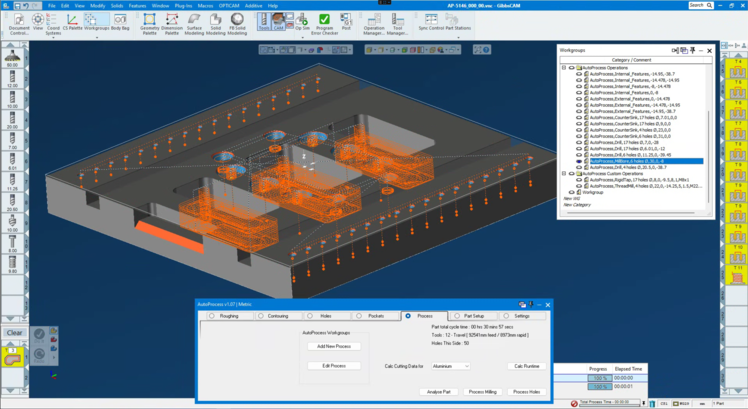
AutoProcess is a plugin for GibbsCAM for automated programming of most of your basic 2.5D milling parts.
Import your part model, set stock material and you can get a basic and complete CAM program in under a minute. All automatic processing is done realtime inside GibbsCAM.
Works extremely well on flat parts, planar surfaces, holes and pockets and require minor adjustments and review before machining.
AutoProcess does not use AI, does not use any external tools, network or cloud connectivity for processing.
AutoProcess performs a model analysis for recognizing and identify model features and hooks into GibbsCAM's internal feature recognition for determining processes.
AutoProcess does all analysis and processing internally in GibbsCAM and does not upload or share model data to cloud services or any AI to process.
All supported processes can adapt to stock material and existing fixtures, and includes :
External features - Facing, outside roughing and outside contouring.
Internal features - Pockets, all kind of shapes - VoluMill roughing and finish contouring.
Bosses and islands, all kind of shapes - Roughing and Contouring.
Detection of threads from holes in 3D model, and can automatically apply rigid tapping operations to all holes.
Round holes - Drilling all detected holes. Detects 118 and 140 deg drills from part model to calculate drill depth.
Round holes - Millbore or VoluMill of larger round holes.
Round holes - Performs operations for all chamfers on holes found in part model.
Automatic Thread Detection
AutoProcess supports automatic thread detection by comparing drilled holes in the 3D model to an internal thread database.
You can either perform scan detection on all holes in model or manually search and add rigid tapping or threadmilling to a group of holes.
Metric threads - Detects M0.25 to M600 in all standard and fine thread pitches. Tolerance class 6H
UN threads - Detects 0 to 4 inches in all UN types (UN-UNM-UNC-UNF-UNS) and tolerance classes 1B-2B-3B.
Thread database contains around a total of 1800 different thread sizes and tolerances.
Material Categories
AutoProcess uses customizable material categories to calculate and apply your preferred feeds and speeds for all supported processes.
6 seperate material categories to customize and select from.
All processes will have calculated feeds and speeds from current selected material.
All material groups can be edited to use cutting data you prefer.
AutoProcess Workgroups
AutoProcess uses workgroups to categorize and separate the different features detected from the part model.
Each of these workgroups are named using easy to see keywords and holds information found during analysis.
During automatic programming, these workgroups are used as a reference for operations, providing geometry, height/depth data, hole attributes, thread data, etc, for all operations.
Workgropus for internal and external features have the geometry needed for machining each induvidual feature.
Workgroup for holes have all the points geometry and depth Z values for machining.
Workgroup operations can can easily be added or edited through the AutoProcess interface.
If there are workgroups for machining you dont need, just delete the workgroup before processing operations.
AutoProcess Features
AutoProcess does a full analysis of any 3D solids to automatically detect all flat surfaces, holes, chamfers and pockets.
Can detect and seperate features that are underside and only program accessible features. Flip the part and rerun analysis for op2.
Detects 140 / 118 deg drilled holes in 3D model to accurately set drill depth on generated drill processes.
Detects 45deg chamfers on holes and size of chamfer.
Applies sorting and always tries to minimize air travel between features.
Accurate part runtime estimate, uses all feed moves and rapid moves in operations to calculate and display machining time on-the-fly.
Configurable logic for all holes, set max hole diameter for drilling. Holes larger than drill max hole diameter will switch to milling (Millbore/VoluMill).
Choose drill depth to tip or to full diameter drill.
When rigid tapping is performed, depth of tapping is automatically adjusted back to prevent driving the tap to same depth as drill.
When thread milling is performed, depth of thread is automatically adjusted to match number of teeth to prevent threadmilling too deep.
Pocket filter, set a minimum mm² area for milling pockets, smaller pockets than this will be ignored. Useful for excluding tiny details like number or text engravings.
Creates seperate workgroups with descriptions for all geometry used in operations. Easy to navigate when reviewing and finetuning operations.
Does not use any templates or pre-saved processes, each applied process are dynamically calculated and constructed, and adapts directly to features from the part model.
AutoProcess is written in the powerful macro language in GibbsCAM and runs local and inside GibbsCAM only.
Does not use any form of artificial intelligence (AI). The performed analysis enables AutoProcess to adapt and work on any model you throw at it.
All toolpaths are determined and created by GibbsCAM's internal feature recognition and internal toolpath engine(s)
Current Limitations
Does not recognize "3D" features like curved surfaces, sloped surfaces and does not perform advanced surface machining (Adv3D / SolidSurfacer).
AutoProcess assumes top of part is Z0 and all machining is in the negative Z direction.
No tool management at the moment, AutoProcess generates tools on the fly, and you need to edit tool numbers and offsets.
Does not support Product Manufacturing Information (PMI) data as GibbsCAM currently doesnt provide a way to read this. AutoProcess uses only dimensions from part model.
Currently only works for 3 axis mills (locked to XY plane) - 3+2 machining is planned to be added in the future.
Does not currently support millturn machines, millturn and also possibility of automated turn programming is being investigated.
Prerequisites
Part model must be clean and proper. Any model that have tiny errors or abnormal deviations can cause AutoProcess to fail detecting all features.
Imported STEP files usually have split holes (spline NURBS format) and need a manual fix, this is achieved in GibbsCAM by performing Remove Unneeded Topology and Simplify before analysis is performed.
AutoProcess sets only the necessary values and options for operations and might not create correct toolpath if not everything matches. In these cases it might be required to manually set some options that AutoProcess doesnt have access too. This is unfortunately a current limitation in GibbsCAM and could be improved in the future.
Usage scenarios
Use AutoProcess to greatly speed up programming your basic 2.5D parts and divert valuable programming time to use on more complex parts.
Parts with alot of holes, slots or pockets and repetitive tasks will benefit from automating process creation.
AutoProcess performs really well on flat parts that are all planar geometry with holes and pockets.
Alternative to Hole Manager in GibbsCAM, AutoProcess automates and speeds up all hole and thread programming. A part with hundreds of different holes takes seconds to program.
For parts with 3D surfaces and features that AutoProcess doesnt see, you can still take advantage of AutoProcess and just process holes or pockets.
Download the evaluation version of AutoProcess
This evaluation version have a limit on part features but is a fully working version that will process any part. The downloadable example parts listed below will fully process or you can try on your own parts.
You can run the evaluation version on any milling part without too many features to perform autonomous CAM programming.
Parts with high number of features requires a license to fully process. AutoProcess license is $500 - one license per GibbsCAM seat. This license is not a subscription but permanent and does not expire.
Download AutoProcess for GibbsCAM
newnew
AutoProcess installs as a macro in GibbsCAM. [ Install Instructions ] AutoProcess requires GibbsCAM 2025 or newer, performs best in GibbsCAM 2026
(Due to issues that appeared in recent GibbsCAM versions, AutoProcess does not work on 25.0.63, 25.0.64 or 26.0.44)
03.10.2025 - AutoProcess v1.08 - Logic fixes and improvements to threadmill tool creation. Fix to error instance in manual thread adding. Added button to clean up and remove all wg's