Settings Tab
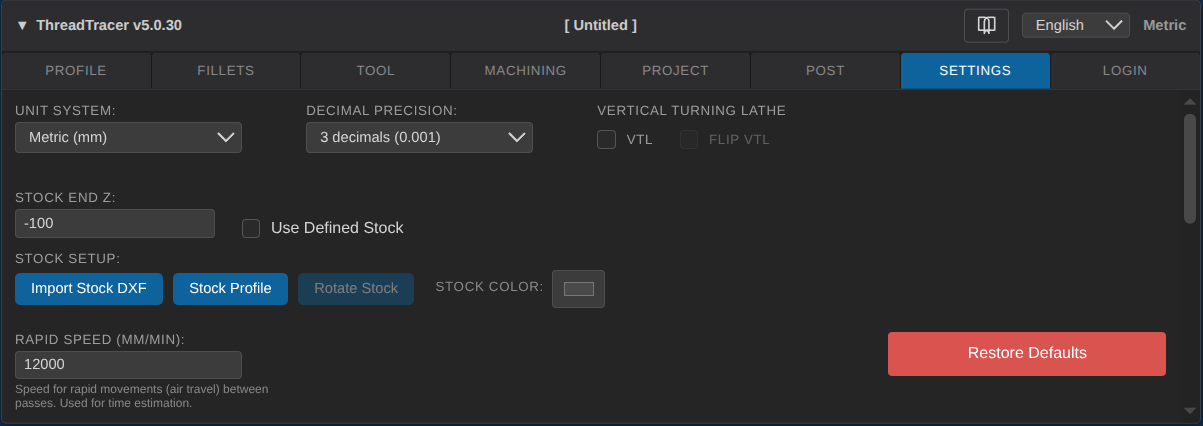
Unit System
Select the unit system to work in.
Metric (mm) or Imperial (inch)
Decimal Precision
Set the number of decimal precision.
- 2 decimals (0.01)
- 3 decimals (0.001)
- 4 decimals (0.0001)
Default is 3 decimals for metric system, and 4 decimals for working in inches.
Vertical Turning Lathe
Toggle the checkmark to visually rotate the coordinate system to supports setup alignment as a horizontal cnc lathe or vertical cnc lathe (VTL).
This is only a visual rotation and can be helpful as it shows all toolpaths, clearance travel lines, and stock model as on a VTL machine.
A seperate toogle will flip/mirror the VTL view to other side.
Stock End Z
Set absolute Z coordinate for the length of stock
Stock Setup
Use Defined Stock
-
Import Stock DXF [button]
You can import your part as a DXF. Click the button and choose a DXF file
This can easily be done by exporting the geometry of the part from you CAM system, and use as a visual part when programming the thread.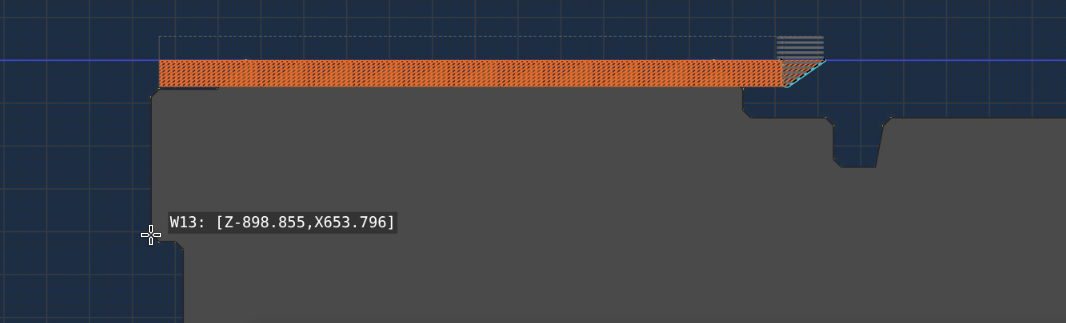
-
Add Coordinates [button]
If you dont have a DFX file, you can manually define your part with typing coordinates manually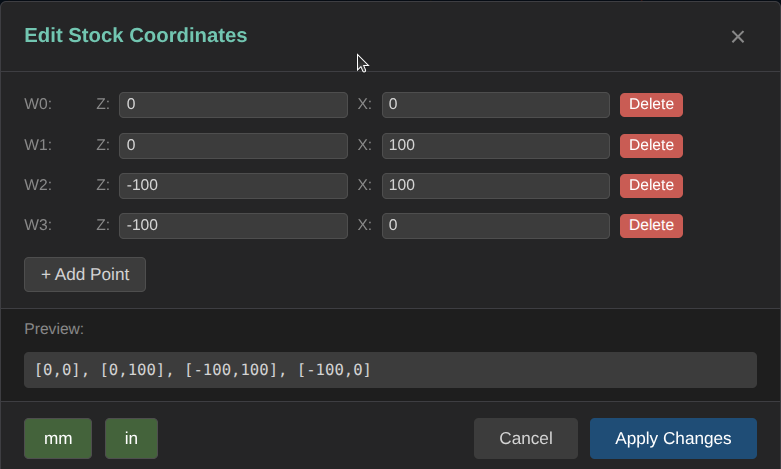
-
Edit Coordinates [button]
Edit the existing coordinates and change the part with as many points as needed.
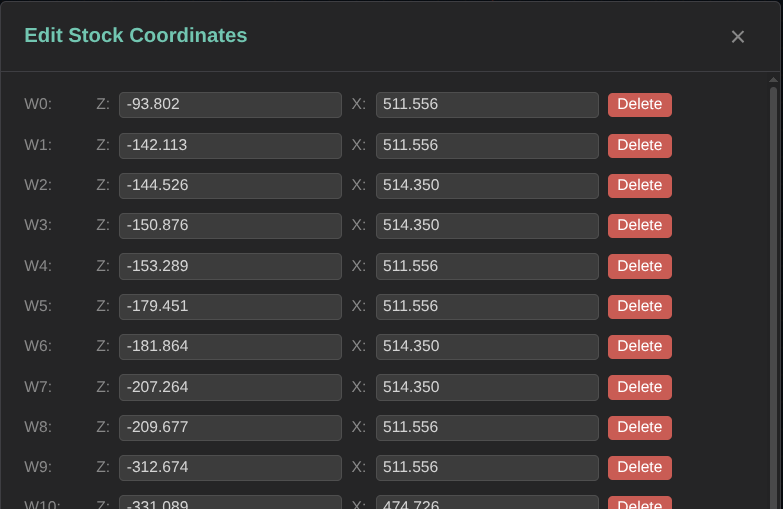
Coordinates must follow a pattern to connect, each coordinate set is labeled with a W number, W0,W1,W3,W4,w5, etc
When the part is constructed from the coordinate sets, it draws a line from W0 to W1, then to W2, W3,...until the shape is closed.
If we as an example wants to draw a part with two diameters, we use the Add Point button and adds more points. Then adjust the coordinate sets to set diameter ø100mm that now ends at Z-10, then a new ø110 diameter for the rest of the part.
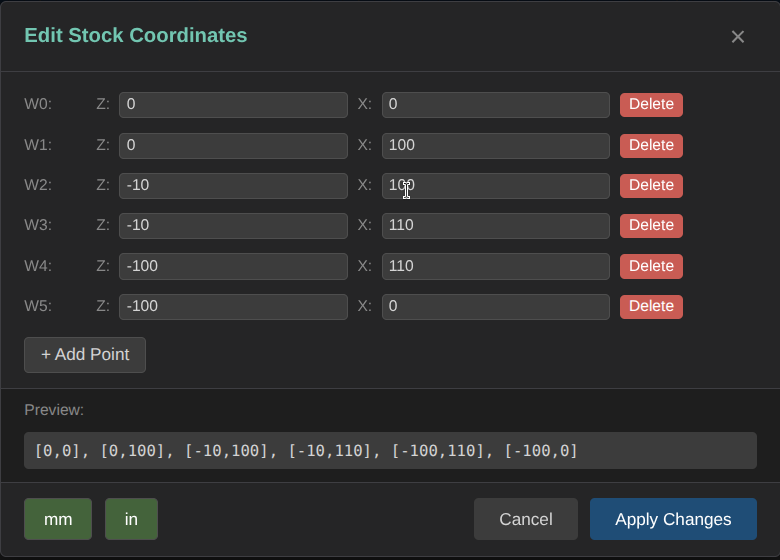
Preview shows the coordinate sets as a compressed single line : [0,0], [0,100], [-10,100], [-10,110], [-100,110], [-100,0]
This preview line is how the coordinates are drawn in order using lines. Corner radius are not supported, but you can add chamfers with more points.
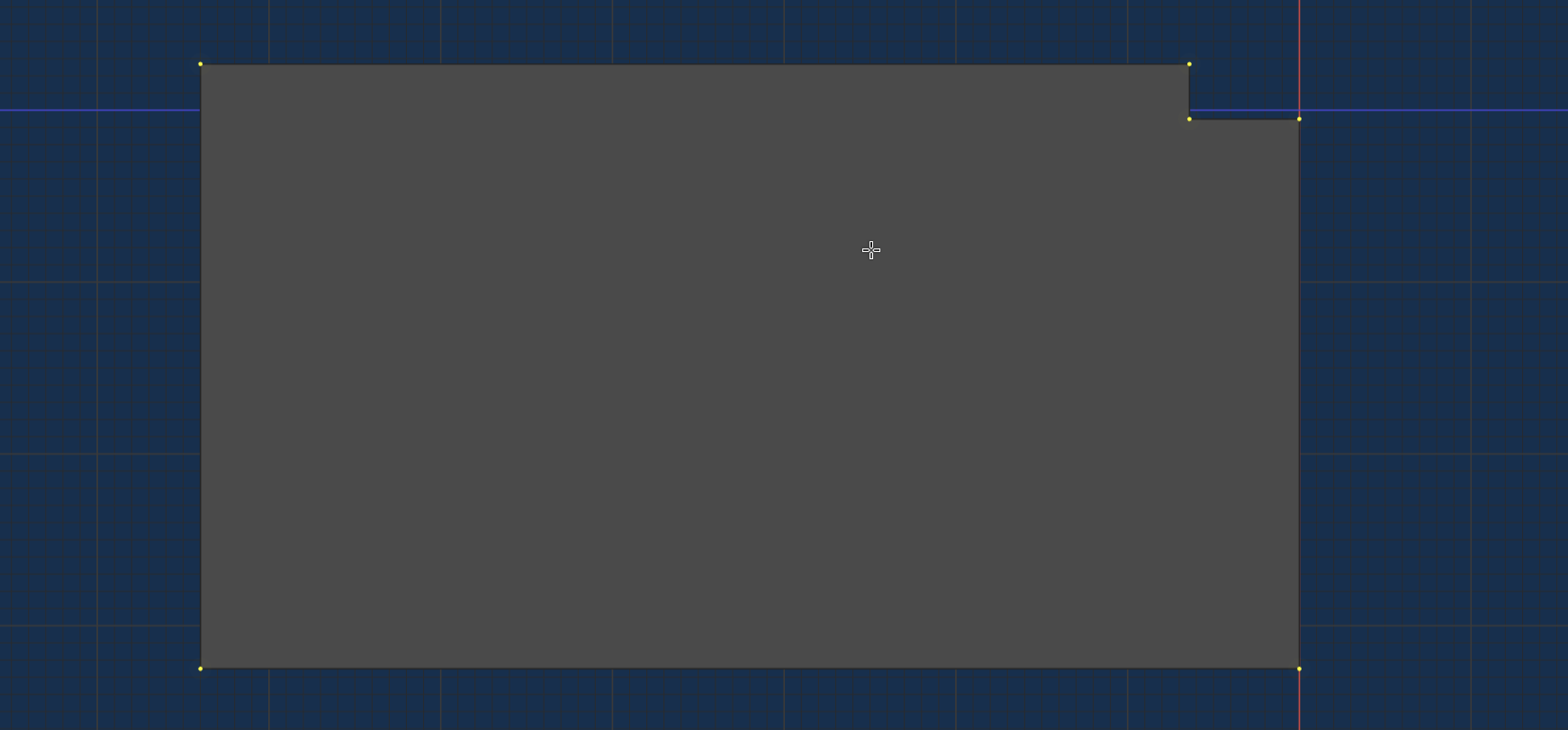
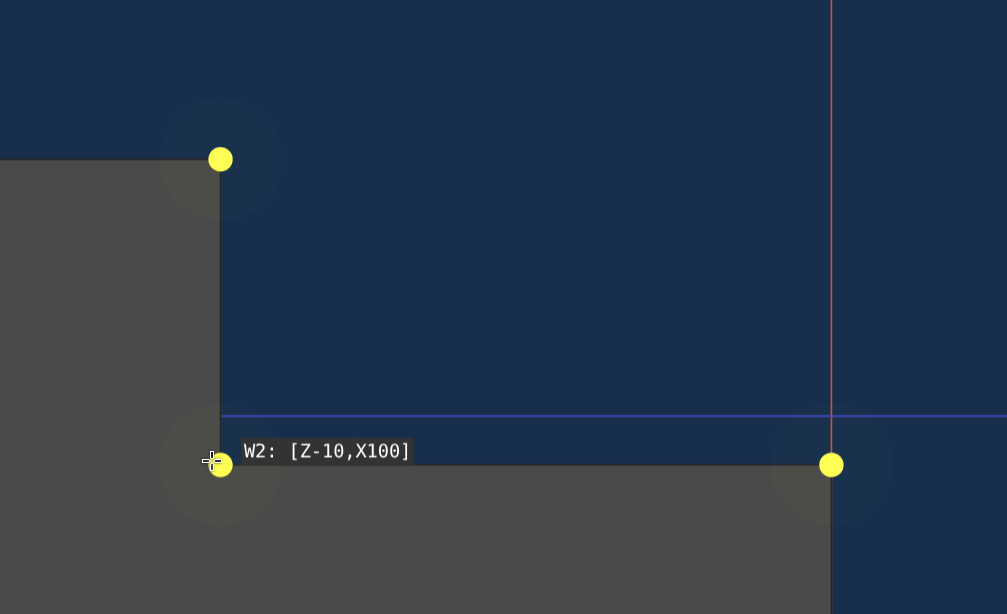
On any part that is defined with coordinate points or imported as DXF, you can see the W points as yellow dots and moving the mousepointer over them will show the W number and coordinates in a small box.
You can use the green [mm] or [in] buttons at the bottom to convert all coordinates to inch or metric.
When editing coordinates from an imported DXF, the coordinate sets are not always with W0 starting at Z0,X0 this depends on how the DFX is built.
-
Rotate Stock [button]
-
Choose color for the stock material.
Rapid Travel Speed
Set the rapid feed rate the machine tool travels at, this will give better Machining Runtime estimate in the Machining Statistics window.
Restore Defaults
Use this button if you want to start fresh. All settings and numbers will get set back back to default and project name and description is cleared.
If you switch back and forth between metric and inch some settings can wrongly persist. Its recommended to always use Restore Defaults button after changing unit system.
Roughing Tool Color
Not in use.
Tool Color
Set a color for all tool inserts rendered on screen.
Screensaver Timeout
Set the timeout in seconds for the screensaver
Import from GibbsCAM ThreadTracer
3Dconnexion Spacemouse
Use a spacemouse for pan and zoom.
The spacemouse will be autodetected when you enable it with the checkmark.
Pan Sensitivity
Set pan sensitivity for spacemouse
Zoom Sensitivity
Set zoom sensitivity for spacemouse
Deadzone
Set deadzone sensitivity for spacemouse